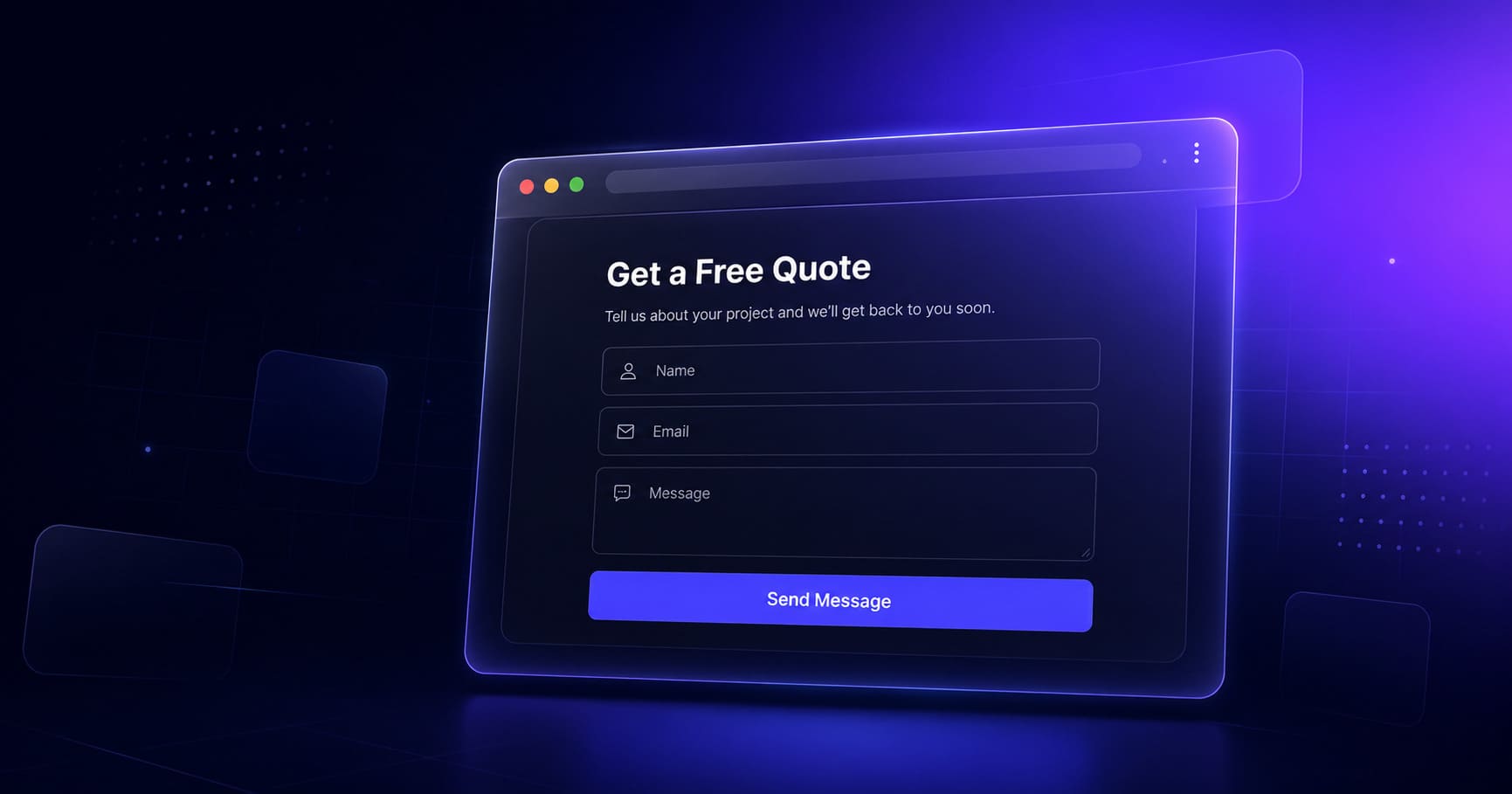
Your landing page is the digital equivalent of your shop front — and a contact form is the door visitors knock on when they want to talk to you. Without one, interested customers have no clear way to reach you from your site. They close the tab and move on to someone who made it easy.
A contact form also does something that just listing your phone number does not: it lets someone reach you at 2am without calling, lets you review enquiries at a time that suits you, and gives you a written record of what each person asked. For a tuition centre in Pune, a boutique in Jaipur, or a freelance consultant in Hyderabad, that is genuinely useful.
This guide covers exactly how to add a contact form to your MakeOurs landing page — the setup, where submissions go, how to test it, and how to get more enquiries from the visitors who reach your site.
1. Why a Contact Form Beats Just Listing Your Phone Number
Listing your mobile number on your landing page is better than nothing. But it has real limitations.
Visitors may not want to call — especially for a first contact. They do not know if you are free, if it is the right time to call, or if they will be put on hold. A form removes all of these friction points. They fill it in, you respond when you can.
You get a written record of every enquiry. You can see exactly what they asked, what service they mentioned, what time the submission came in. This is much more useful than a missed call with no voicemail.
Forms feel more professional. A landing page with a working contact form and a real response signal "this is an established business." A landing page that just says "call this number" feels like a business card, not a landing page.
2. Does MakeOurs Add a Contact Form Automatically?
If your prompt mentioned a contact form, or if the AI decided your business type warrants one, MakeOurs will include a contact form section in your generated site. For most service businesses — coaching, consulting, legal, event management, beauty, food — the AI typically adds one by default.
Check your generated site. Scroll to the bottom — contact form sections are usually placed last. If it is there, skip to Section 4 to learn how to configure and test it. If it is not there, Section 3 covers how to add one.
3. How to Add a Contact Form Section on MakeOurs
If your generated site does not have a contact form section, you can add one through the editor:
- Open your site in the MakeOurs editor.
- In the left sidebar under the Content tab, look at the sections list. At the top of the sections panel, there is a + (plus) icon button in the panel header.
- Click the + button. A modal dialog titled "Add Section" opens, showing a grid of section type cards.
- Find and click the Contact card. A contact form section is added to the bottom of your page (just above the footer).
- The section contains a default form — usually with name, email, and message fields.
To move the contact form to a different position on the page, drag the section to the right place using the grip handle (⠿) on the left side of its row in the sidebar section list.
4. Customizing Your Contact Form
Once the contact form section is on your page, click into it to edit the content around the form:
Edit the section heading: Change "Contact Us" to something more specific — "Send Us an Enquiry," "Get a Free Quote," or "Book a Consultation." Specific headings set the right expectation and convert better.
Edit the descriptive text: The text above or below the form often says something generic. Replace it with a response time promise: "We typically respond within 4 hours on weekdays" or "Fill in your details and we will call you back the same day." This reduces hesitation.
Button label: Change "Submit" or "Send" to something more active — "Send My Enquiry," "Request a Callback," or "Get a Free Quote." The label should describe what happens when the button is clicked.
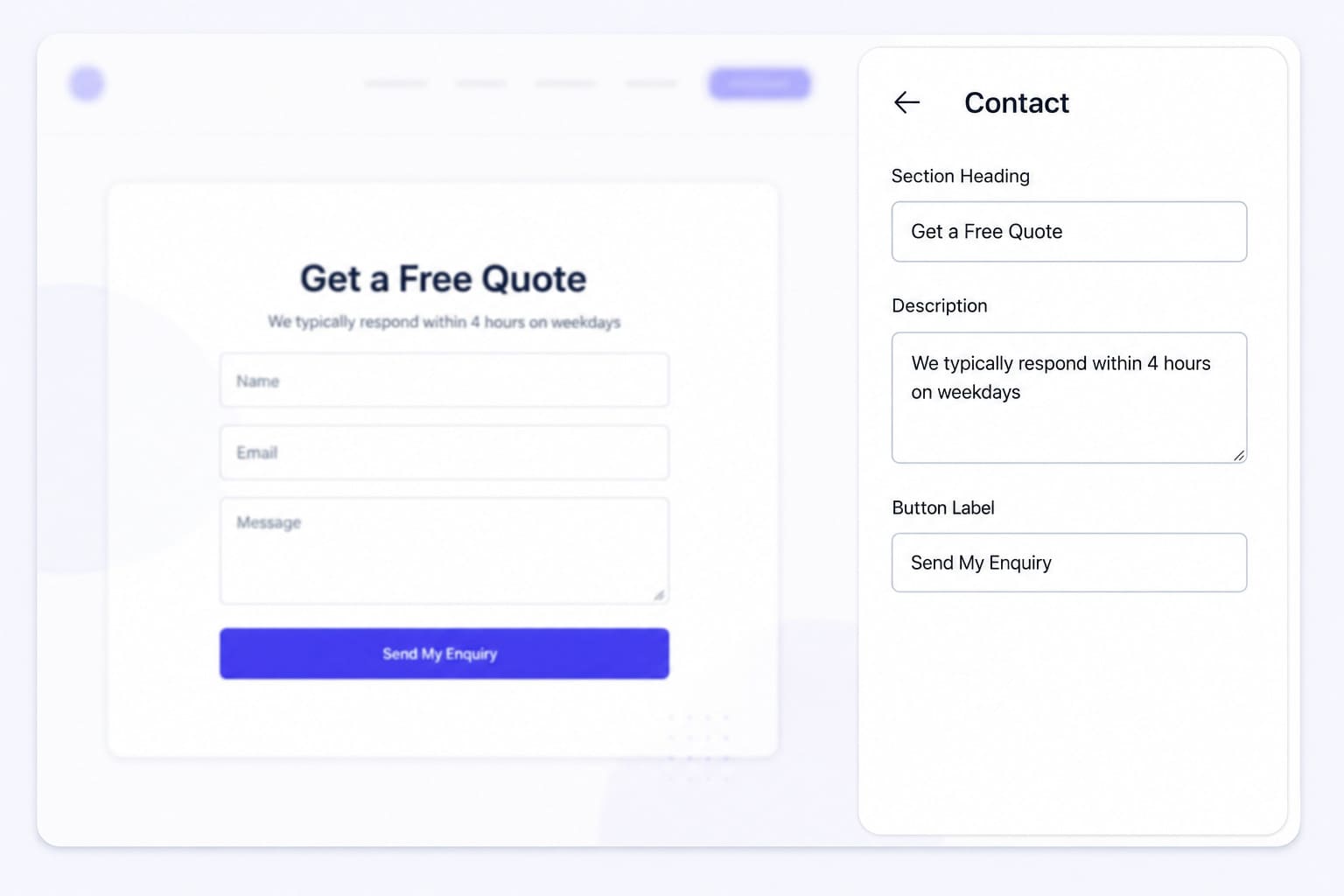 Changing the section heading from "Contact Us" to "Get a Free Quote" and adding a response time promise significantly increases form submissions.
5. Where Contact Form Submissions Go
When a visitor fills in and submits your site's contact form, the submission is stored in your MakeOurs dashboard. Log in to makeours.com, go to your site's dashboard, and look for a "Form Submissions" section. Every submission appears here with the name, email, message, and timestamp.
Get into the habit of checking your dashboard regularly — ideally every morning or after every working day. Do not let enquiries sit unanswered for more than 24 hours. Response time is one of the biggest factors in whether an enquiry converts to a customer.
6. Testing Your Contact Form Before Going Live
You can test your contact form directly from the editor — no need to publish first.
Fill in all the fields in the contact form on your site preview, then click the submit button. If the form is working correctly, the form disappears and a thank you message appears in its place. That confirmation screen is your signal that the form is connected and functional.
Note: test submissions made from the editor are not recorded in your MakeOurs dashboard. Only submissions from real visitors on your published live site appear there.
7. Where to Place Your Contact Form for the Most Enquiries
Contact form placement affects how many people fill it in. Two placements work best:
At the bottom of the page — the traditional position. By the time a visitor has read through your services, about section, and testimonials, they are informed and ready to act. Placing the form at the end of the natural reading journey captures this motivated traffic.
Mid-page after your services or pricing section — if your services or pricing section is compelling, place a shorter contact form or CTA button immediately after it. "Interested? Send us a message" right after the pricing table catches visitors while they are most engaged.
For most service businesses, having the form at the bottom as the final section is the most effective single placement. If you want to add a second CTA earlier in the page, use a button that scrolls down to the form rather than a second form — fewer duplicate submissions and a cleaner user experience.
8. How to Get More Enquiries From Your Form
A contact form on the page is just the starting point. Here is how to get more people to actually fill it in:
Reduce the number of required fields. Every additional required field reduces submission rates. For most businesses, name, email, and message are enough. Only add a phone number field if you will actually call people back.
Add a clear response time promise. "We respond within 24 hours" above the form is consistently one of the highest-impact additions to a contact section. It reduces the uncertainty of "will anyone actually see this?"
Place the form CTA in your hero section. Your hero button can scroll down to the contact form. This captures visitors who decide immediately, not just those who read to the end.
Use specific button text. "Get a Free Estimate" outperforms "Submit" because it tells the visitor exactly what they get in exchange for filling in the form.
9. Frequently Asked Questions
Q1: How do I add a contact form to my MakeOurs landing page?
Open your site in the builder. In the left sidebar Content tab, click the + button in the sections panel header. A dialog opens showing all available section types. Click the Contact card — the section is added immediately. Click the section in the sidebar list to open its editor and customize the heading, text, and button label.
Q2: Where do MakeOurs contact form submissions go?
Submissions are stored in your MakeOurs dashboard under the form submissions section for your site. Log in to MakeOurs, go to your site, and open the Form Submissions section to see every enquiry with full details.
Q3: Can I add custom fields to the MakeOurs contact form?
MakeOurs contact forms include standard fields (name, email, message). Check your account's form settings for available customization options.
Q4: Does the MakeOurs contact form work on mobile?
Yes. The contact form sections in MakeOurs are responsive — they display and function correctly on mobile devices. Visitors on smartphones can fill in and submit the form the same way desktop visitors can.
Q5: How quickly should I respond to contact form submissions?
Aim to respond within 24 hours, ideally the same business day. First-response time has a significant effect on conversion — a lead that gets a response within an hour is far more likely to become a customer than one that waits two days.
10. Conclusion: Your Form Is How Visitors Become Customers
A working contact form is what separates a landing page that generates enquiries from one that just looks good. Adding a contact form to your landing page on MakeOurs takes about two minutes — one minute to add the section, one minute to customize the heading, text, and button label.
The form by itself does not guarantee enquiries. The text around it, the response time promise, the specific button label, and the placement on your page all affect how many people fill it in. Spend five minutes getting those details right after adding the section.
Then test it before you publish. Fill in the form in the editor and submit — if a thank you message replaces the form, it is working. Do this once and you will never wonder "are people trying to contact me?" again.
Add a contact form, go live, and start receiving real enquiries today. Open MakeOurs and Set Up Your Form
External References & Further Reading:
- Web.dev: Best practices for web forms
- Nielsen Norman Group: Web form design guidelines
- TRAI Consumer Guidelines: Digital communication rules for Indian businesses
For more guides on making your MakeOurs site work harder for your business, visit our Blog section.