You have been using your free yourslug.mours.site subdomain and it has served you well — the site is live, it works, people can find you. But now you are ready for a proper web address. Something that says yourbusiness.com in the browser bar. Something you can put on business cards without explaining what .mours.site means.
Connecting a custom domain to MakeOurs is simpler than most people expect — it comes down to a single DNS record. This guide explains exactly how to connect a custom domain to MakeOurs, from buying the domain to seeing your site live at your own URL.
1. What You Need Before You Start
To connect a custom domain to MakeOurs, you need two things:
1. A Pro or Business MakeOurs plan. Custom domain connection is available from the Pro plan (₹499/month) upward — the same plan that unlocks publishing your site in the first place. If you are on the free plan, upgrade first. Check makeours.com/pricing for current plan details.
2. A registered domain name. You need to own the domain before you can connect it. If you have already purchased one (from GoDaddy, Namecheap, BigRock, Hostinger, or any registrar), you are ready. If not, the next section covers where to buy one.
2. Where to Buy a Domain Name in India
Domain names typically cost ₹700–₹1,500 per year for a .com domain. Popular registrars available in India:
- GoDaddy India — large selection, regular discounts, Hindi support
- Hostinger India — competitive pricing
- BigRock — one of the largest India-based registrars
- Namecheap — trusted global registrar, good pricing on renewals
When choosing your domain name:
.comis still the most recognized and trusted extension.inis the Indian country-code extension — works well for businesses targeting exclusively Indian audiences- Keep it short, easy to spell, and as close to your business name as possible
- Avoid hyphens in domain names —
my-business.comis harder to share thanmybusiness.com
3. Adding Your Domain in MakeOurs
Log in to your MakeOurs account, open your site, go to Settings, and select the Domain tab. Switch from the "Subdomain" tab to the "Custom Domain" tab.
Enter your domain name (e.g., yourbusiness.com or www.yourbusiness.com) in the field and click Save Settings. MakeOurs will display the single DNS record you need to add at your registrar. Keep this screen open — you will need this value in the next step.
MakeOurs only ever asks for one record, depending on the type of domain you entered:
- If you entered your root domain (
yourbusiness.com), you need an A record pointing to an IP address. - If you entered a subdomain-style address (
www.yourbusiness.com), you need a CNAME record pointing to a MakeOurs value.
You do not need to add both — just the one that matches what you typed in.
4. Updating DNS Settings at Your Registrar
Log in to your domain registrar's account. Navigate to the DNS Management or DNS Settings section for your domain — usually under "Manage Domain" or "Advanced DNS."
Add the single record MakeOurs showed you:
If you're connecting the root domain (yourbusiness.com):
- Type: A
- Host / Name:
@(represents the root domain) - Value / Points to: the IP address MakeOurs showed you
- TTL: 3600 (or "Automatic")
If you're connecting www.yourbusiness.com:
- Type: CNAME
- Host / Name:
www - Value / Points to: the CNAME value MakeOurs showed you
- TTL: 3600 (or "Automatic")
Save the record. If your registrar has an existing A or CNAME record for the same host, delete or edit it first to avoid a conflict.
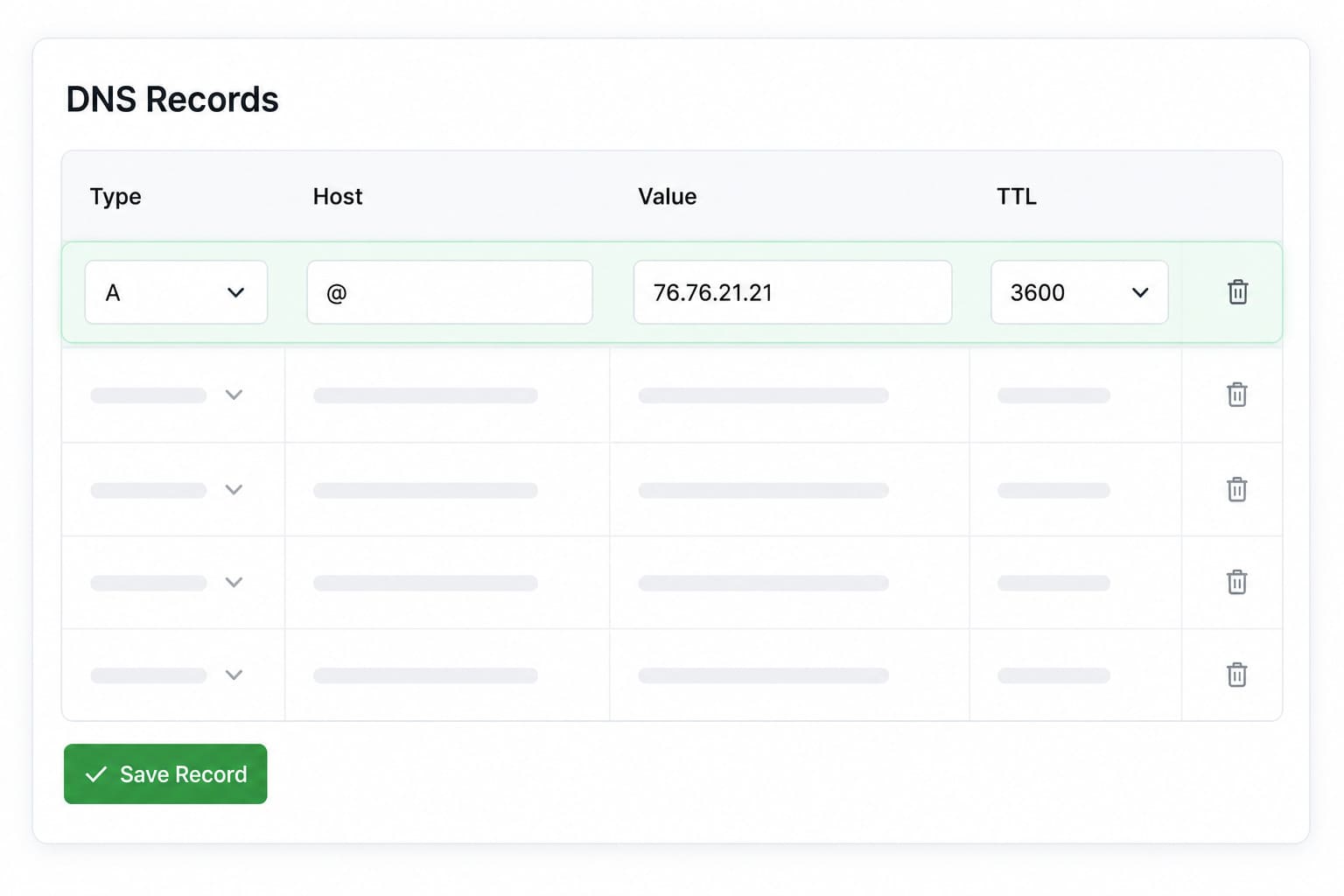 MakeOurs only requires one DNS record — an A record for a root domain, or a CNAME for a www-style address. Add exactly the one shown on your Domain settings screen.
5. Waiting for DNS Propagation
After saving your DNS record, there is a waiting period called DNS propagation — the time it takes for the change to spread across the global network of DNS servers. MakeOurs' own guidance is to allow up to 24 hours, though it is frequently much faster — often well under an hour with most registrars.
During propagation:
- Your domain may not load yet, or may load intermittently
- Different visitors in different locations may see different results briefly
- This is normal and resolves on its own
Go back to your MakeOurs Domain settings and click Check Status. MakeOurs will check whether your DNS record is correctly pointing to your site, and the status badge updates from "Pending" to "Active" once verified.
6. SSL Certificate — Automatic on MakeOurs
SSL (the HTTPS padlock) is provisioned automatically once your domain is verified. You do not need to purchase, install, or configure a certificate separately.
Once MakeOurs confirms your DNS is correct and the status shows "Active," your site is accessible at https://yourbusiness.com with the padlock in place, usually within minutes of verification.
7. Confirming Your Site Is Live on Your Domain
Once your Domain settings show an "Active" status:
- Open a browser and go to
https://yourbusiness.com(or whichever address you connected) - Your MakeOurs site loads at your custom domain
- The browser shows
https://and the padlock icon
Test from a mobile device as well.
8. Common Issues and How to Fix Them
Status stays "Pending" after several hours:
Double-check the DNS record at your registrar — look for typos in the value, or an extra trailing dot. Confirm you used the correct record type (A for root domain, CNAME for www).
Site loads on www but not the root domain, or vice versa:
You only connected one of the two address styles. If you want both yourbusiness.com and www.yourbusiness.com to work, you need to add each as its own domain in MakeOurs with its own matching DNS record (A for root, CNAME for www).
Old site or "parked domain" page still showing: DNS has not fully propagated yet, or your browser is using a cached version. Clear your browser cache and retry, or test from a private/incognito window.
Can't find the Domain tab or Custom Domain option is locked: Custom domain connection requires Pro or Business. Check your site's Billing section to confirm your plan.
9. Frequently Asked Questions
Q1: How long does it take to connect a custom domain to MakeOurs?
The setup steps take about 10–15 minutes. MakeOurs advises allowing up to 24 hours for DNS propagation, though it's often much quicker. Plan for anywhere from a few minutes to a few hours for the full process.
Q2: Do I need to transfer my domain to MakeOurs?
No. You keep your domain at your registrar. You only add one DNS record to point it to MakeOurs. The domain remains owned and managed by you at your registrar.
Q3: How many DNS records do I need to add?
Just one — an A record if you're connecting your root domain, or a CNAME record if you're connecting a www-style address. MakeOurs' Domain settings screen shows you exactly which one, with the value to use.
Q4: Can I connect a domain I already use for email?
Yes, but be careful when updating DNS records — email delivery depends on MX records, which are separate from the A/CNAME record MakeOurs asks for. Only add the record MakeOurs specifies; don't touch your existing MX records.
Q5: Which plan do I need to connect a custom domain on MakeOurs?
Pro (₹499/month) or Business (₹999/month). Both include custom domain connection along with the ability to publish your site in the first place.
10. Conclusion: Your Domain, Your Brand
A custom domain is the step that takes your MakeOurs site from "I have a website" to "I have a professional web presence." The URL yourbusiness.com carries more weight than yourslug.mours.site in proposals, on business cards, in your email signature, and in local search results.
The technical step — adding one DNS record — sounds complicated but takes under 15 minutes once you have the value from MakeOurs. After that it's just waiting for DNS to catch up, which is usually fast.
Upgrade your plan and get your business its proper web address. Connect Your Custom Domain on MakeOurs
External References & Further Reading:
- Cloudflare Blog: What is DNS and how does it work
- ICANN: Domain name basics and registration
- Google Search Central: Move your site to a new domain
For more help setting up your MakeOurs site, visit our Blog section.