You log into MakeOurs after publishing your first site and land on the dashboard. There are cards, numbers, navigation items, settings panels. You know where the "Edit" button is because that is what you have been using. But you are not quite sure what everything else does or where to go when you need to find your contact form submissions, check your page views, manage your domain, or update your billing.
The MakeOurs dashboard is the control centre for everything connected to your sites and your account. This guide walks through every section of it so you know exactly what is there and when to use each part.
1. The Dashboard at a Glance
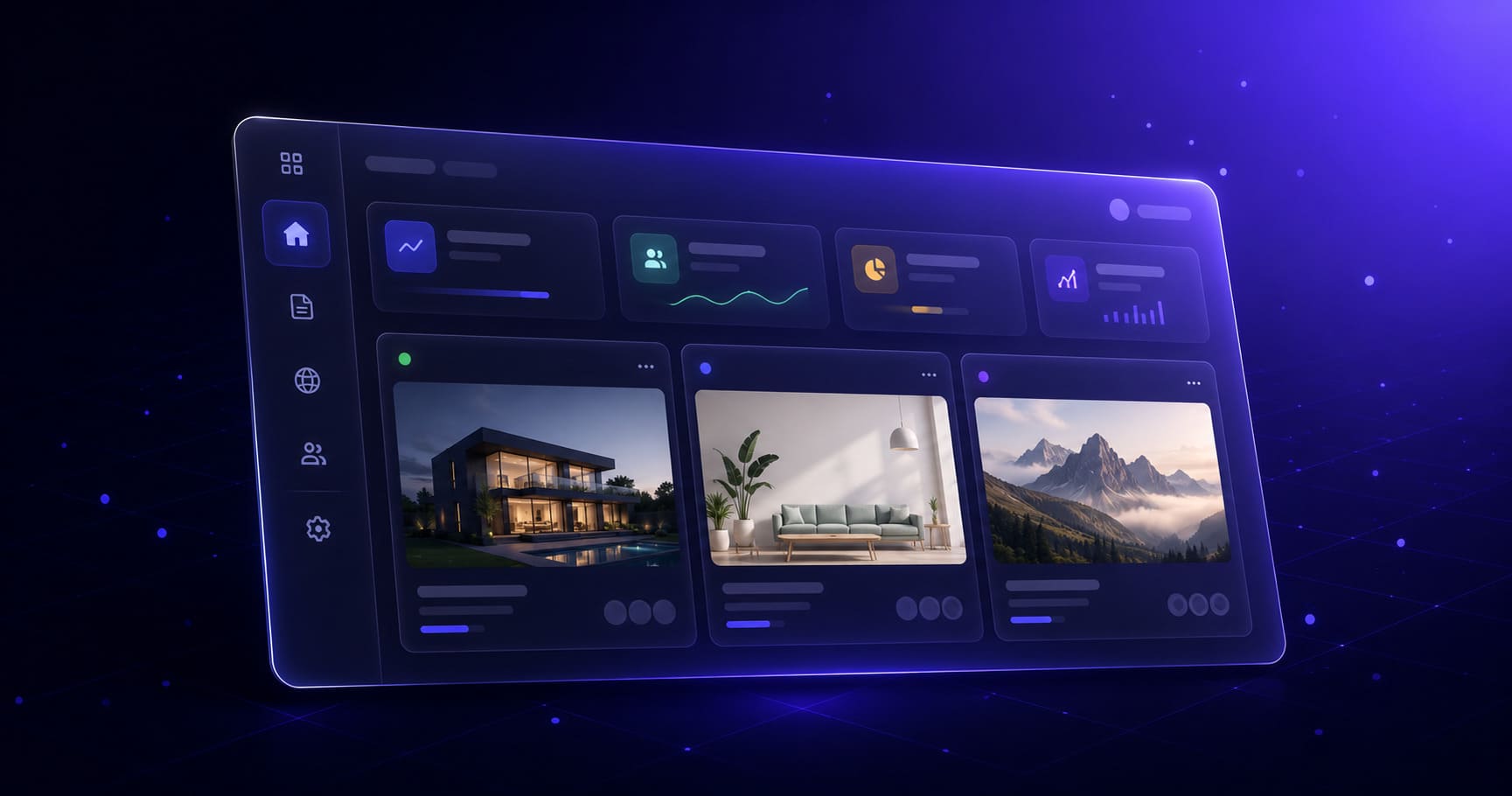
When you log in to MakeOurs, the dashboard is the first screen you see. It is organized around your sites — each site you have created on MakeOurs appears as a card, and selecting a site takes you deeper into that site's settings and data.
At the top level, the MakeOurs dashboard gives you:
- A list of all your sites
- Quick access to edit, preview, and publish each site
- Navigation to account-level settings like billing and profile
Everything below that is site-specific — analytics, form submissions, domain settings, and site configuration are all organized per site.
2. Your Sites List
The main screen of the MakeOurs dashboard shows every site you have created. Each site card typically shows:
- The site name or title
- The current live URL (free subdomain or custom domain)
- The last published date
- A thumbnail preview of the site
From the site card, you can:
- Edit — opens the visual builder for that site
- Preview — opens the current live version in a new tab
- Settings — opens the site-specific settings panel
If you are on a plan that allows multiple sites, all of them appear here. The free plan typically allows one site.
3. Site Settings — What Is Configurable Per Site
Inside each site's settings panel, you will find the configuration specific to that site. This typically includes:
Site name and title: The name your site uses in the browser tab and some SEO contexts. Update this to match your business name if the AI generated a generic title.
Site description: A short description used in some SEO metadata. Keep it to one sentence describing what your site or business does.
Favicon: The small icon that appears in the browser tab next to your site title. Uploading your logo or a simplified version of it here reinforces your brand at every browser tab.
Domain settings: Where you connect a custom domain or see your current free subdomain URL. See our full guide on connecting a custom domain to MakeOurs for detailed steps.
4. Analytics Section in the MakeOurs Dashboard
Select a site and the stat cards right at the top of that site's dashboard page show your page views, form submissions, storage used, and last-published date — no separate menu to dig through.
This is your monthly check-in point. It shows you whether your site is receiving traffic and whether visitors are taking action. Note that analytics is a Pro/Business feature — on the free plan these cards appear locked, which lines up with the free plan not being able to publish in the first place. See our full guide on viewing your landing page analytics on MakeOurs for how to interpret these numbers and what to do with them.
The key numbers to track each month:
- Total page views for the period
- Period-over-period change — going up, flat, or down?
- Form submissions — how many enquiries came in?
5. Form Submissions — Where to Find and Read Them
Every time a visitor fills in and submits your contact form, the submission is stored in your MakeOurs dashboard. Navigate to the form submissions section for your site to see all enquiries.
Each submission shows:
- The submitter's full name
- Their email address
- Their message
- The date and time it was submitted
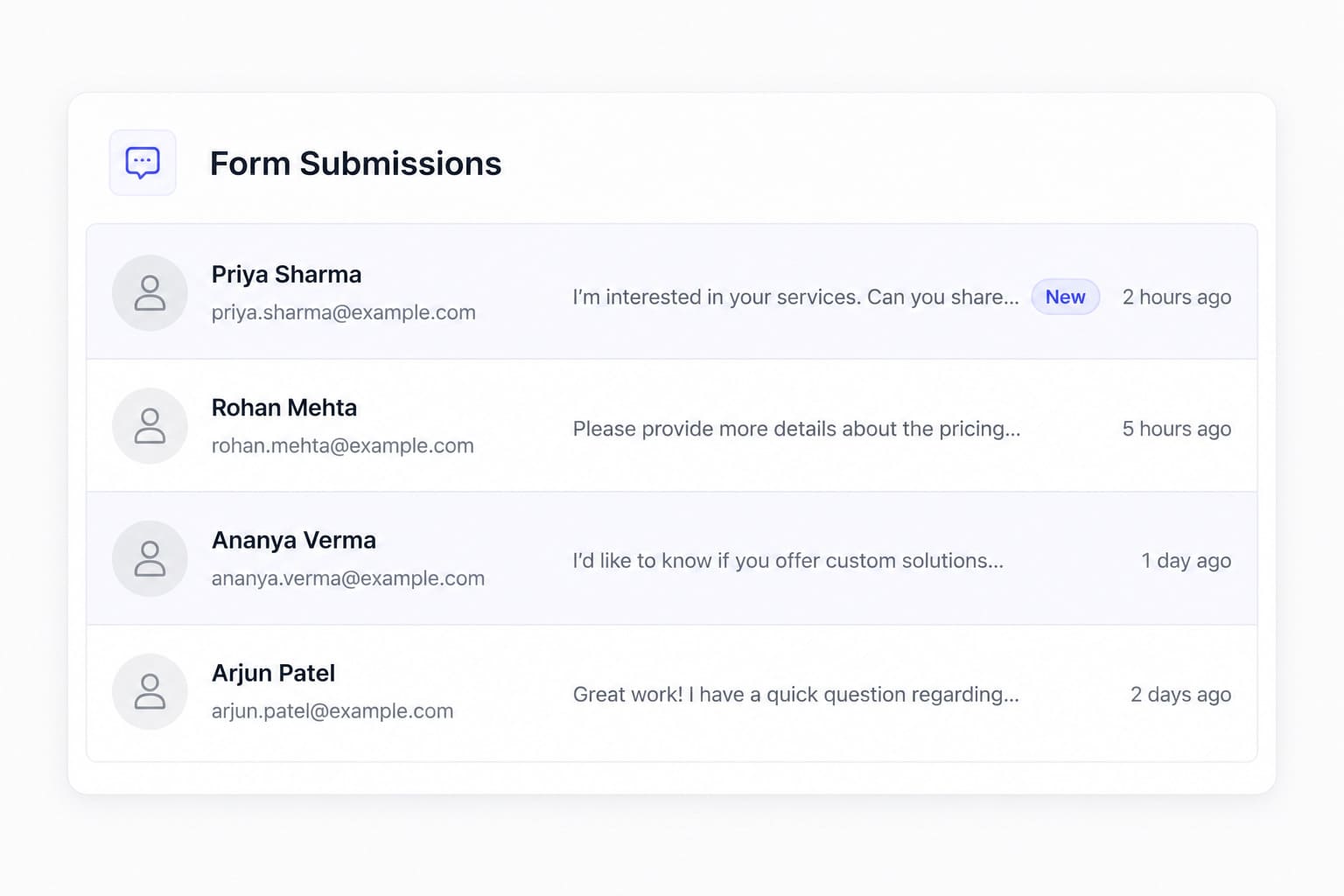 Your form submissions panel is where every enquiry from your contact form is stored — with full name, email, message, and timestamp for each entry.
This is your primary lead source from your MakeOurs site. Review it regularly — every day if your site is actively promoted, at least every two to three days otherwise. Respond promptly to every genuine enquiry.
If you want email notifications when new submissions arrive, configure this in your account notification settings.
6. Domain Settings in the Dashboard
Inside your site settings, the domain section is where you:
- View your current free
yourslug.mours.sitesubdomain - Connect a custom domain (requires a paid plan)
- Manage an already-connected custom domain
- Verify DNS configuration status
If you have connected a custom domain, this section shows whether the domain is verified and whether SSL is active. If either shows as pending or unverified, check the DNS records at your registrar.
For detailed step-by-step instructions on connecting a custom domain, see our guide on connecting your own domain to MakeOurs. Check makeours.com/pricing for which plans include custom domain connection.
7. Account-Level Settings
Some settings in the MakeOurs dashboard apply to your entire account rather than just one site. These are typically accessible from a profile icon, your name, or a gear icon in the corner of the dashboard.
Account-level settings usually include:
Profile information: Your name and email address associated with your MakeOurs account.
Password and security: Update your password or review security settings here.
Notification preferences: Configure which email address receives contact form submission alerts and other notifications from MakeOurs. Make sure this is an email address you check regularly.
Plan and billing: See your current plan, your billing cycle, and options to upgrade or manage your subscription.
8. Billing and Plan Information
The billing section of the MakeOurs dashboard shows:
- Your current plan (Free, Pro, or Business)
- Your billing cycle (monthly or yearly)
- Your next billing date
- Options to upgrade your plan
If you are on the free plan and want to publish your site, connect a custom domain, or access analytics, the upgrade path starts here. Payments are processed through Razorpay — you can pay with a debit card, credit card, UPI, or net banking.
For the latest plan pricing and features, check makeours.com/pricing — pricing and inclusions are updated periodically.
9. Creating a New Site From the Dashboard
If your plan allows multiple sites, you can create a new one directly from the MakeOurs dashboard. Look for a "New Site" or "Create Site" button on the main dashboard screen, typically near your existing site cards.
Selecting it takes you through the same AI generation flow as your first site — type a description, generate, edit, publish. Each new site gets its own free subdomain, its own analytics, and its own form submissions panel.
10. Frequently Asked Questions
Q1: Where is the MakeOurs dashboard?
Log in at makeours.com and you are taken directly to your dashboard. If you are already logged in, navigating to makeours.com typically takes you there as well.
Q2: How do I find my contact form submissions in the MakeOurs dashboard?
Select your site from the dashboard, then navigate to the "Form Submissions" section in your site's panel. All submissions from your contact form are listed there with full details.
Q3: Can I manage multiple landing pages from the same MakeOurs dashboard?
Yes. If your plan supports multiple sites, all of them appear on the main dashboard screen. Each site has its own settings, analytics, and form submissions.
Q4: Where do I go to upgrade my MakeOurs plan?
Go to the billing or plan section of your account settings in the dashboard. From there you can view your current plan and select an upgrade option.
Q5: How do I change the email where MakeOurs sends me notifications?
Go to your account-level settings (usually accessible from your profile icon or account menu in the dashboard) and look for notification preferences. Update the email address there.
11. Conclusion: Your Dashboard Is Where You Run Your Site
The MakeOurs dashboard is not just a place to open the editor. It is where you monitor your site's health, respond to enquiries, manage your domain, and control your account. Spending five minutes exploring it when you first publish is worth it — knowing where everything is means you can act faster when you need to.
Bookmark the dashboard. Check your form submissions every day or two. Review your analytics once a month. Keep your notification email address current so you never miss an enquiry.
Your MakeOurs dashboard is command central for your business's online presence — use it regularly.
Log in and explore your MakeOurs dashboard today. Go to Your Dashboard
External References & Further Reading:
- Web.dev: Website management best practices
- Nielsen Norman Group: Dashboard design principles
- Google Business Profile Help: Managing your business information
For more tips on managing your MakeOurs site, visit our Blog section.