Your MakeOurs site looks right, the copy reads well, the sections are in order. But there's a layer most people never open: what shows up in the Google search result for your business, what image appears when someone shares your link on WhatsApp, and whether you're actually tracking who visits.
All of this lives in one place — the Settings tab of the MakeOurs builder — and it takes about ten minutes to get right. This guide covers exactly where to find it, what each field does, and how to add your own tracking or chat-widget code without needing a developer.
1. Where to Find SEO and Metadata Controls
Open your site in the MakeOurs builder. In the left sidebar, click the Settings tab — the third tab, next to Content and Design. This is where every SEO and metadata field lives, separate from your page content.
At the top of the Settings tab is a General section covering your title tag, meta description, keywords, favicon, and social share image. Below that is a Custom Code section for injecting your own scripts.
2. Setting Your Title Tag
The Title Tag field controls the text shown as the clickable headline in Google search results, and the text in the browser tab when someone has your site open.
MakeOurs recommends 50–60 characters — the field shows a live character counter that turns red past 60. A good title tag states what your business does and, where it helps, your location: "Riya's Tailoring — Custom Stitching in Indore" reads better and ranks more specifically than "Home."
3. Writing Your Meta Description
The Meta Description field is the two-line snippet Google shows under your title in search results — and often what someone reads before deciding whether to click through.
The recommended length is 150–160 characters, again with a live counter that flags anything over 160. Write it as a genuine, specific summary of what a visitor gets: "Custom blouse and saree stitching in Indore with 3-day turnaround. Book a fitting online or call for a same-day quote." Avoid generic filler like "welcome to our website" — it wastes the one line Google gives you to convince someone to click.
4. Adding Keywords
The Keywords field accepts a comma-separated list of terms relevant to your content. Keep this to genuinely relevant terms — the words and phrases your actual customers would search for, not a long list of loosely related terms. This field has far less direct ranking weight in modern search than title and meta description, but it's a reasonable place to note the specific terms your business wants to be associated with.
5. Setting Your Favicon (Site Icon)
The Site Icon (Favicon) field controls the small icon shown in the browser tab next to your title, and in bookmark lists. Click the field to open the Media Library, upload a simplified square version of your logo (32×32px or 64×64px works well), and it's set.
A missing favicon shows a generic blank-page icon in the browser tab — a small detail, but one that makes a site look unfinished at a glance.
6. Setting Your Open Graph (Social Share) Image
The Open Graph Image field controls the preview image shown when your site's link is shared on WhatsApp, Instagram, Facebook, or LinkedIn. The recommended size is 1200×630 pixels — a wider-than-tall image that crops cleanly across most platforms' preview cards.
Without this set, social platforms often fall back to a random image scraped from your page, or no image at all. A deliberately chosen, on-brand share image measurably improves click-through when your link gets shared.
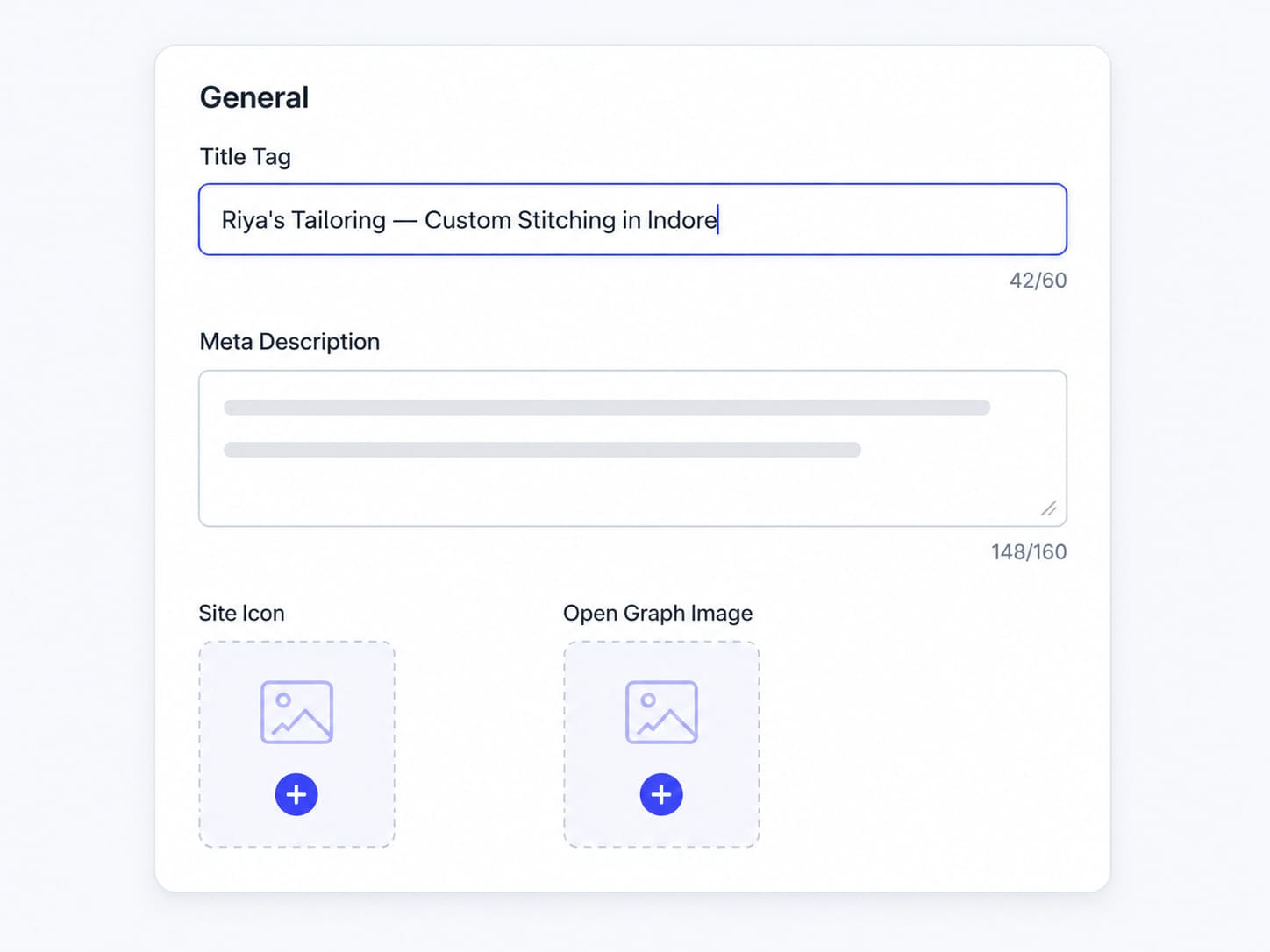 Title, meta description, favicon, and social share image all live together in the builder's Settings tab — with live character counts to keep you within Google's display limits.
7. Adding Custom Code (Google Analytics, Chat Widgets, and More)
Below the General section, the Custom Code area lets you paste your own scripts into two places:
Head Code — injected into the <head> of every page. This is where tracking scripts typically go: a Google Analytics (GA4) snippet, a Meta Pixel, or a Google Search Console verification tag.
Body Code — injected just before the closing </body> tag. This is the usual spot for chat widgets (WhatsApp click-to-chat scripts, Tawk.to, Crisp) and other scripts that render a visible element.
To add one: click into either field, paste the exact script your provider gave you, and save. There's no limit on how many snippets you add to each — most sites only need one or two.
A word of caution: only paste code from sources you trust. Anything placed here runs directly on your live site with full access to the page — treat it the same way you would treat installing a browser extension from an unknown source.
8. Why This Is Worth Doing Before You Publish
None of this is required to publish — MakeOurs generates sensible defaults for your title and description automatically. But the ten minutes it takes to review and tighten these fields has a real, compounding payoff:
- A specific title and description improve your click-through rate from search results, which is itself a factor search engines weigh over time.
- A favicon and share image make your site look complete and professional the instant someone encounters your link anywhere outside of directly visiting it.
- Analytics via custom code means you know your traffic numbers from day one, rather than realizing three months in that you never set up tracking.
Do this once, right after your first full edit of the site content, and you won't need to revisit it unless your business details change.
9. Common Metadata Mistakes to Avoid
Leaving the AI-generated defaults unreviewed. MakeOurs writes a reasonable title and description automatically during generation, but "reasonable" is not the same as "specific to your business's strongest selling point." Spend two minutes rewriting both once your content is finalized.
Writing the same title for every field. Some people copy their business name into the title, then paste it again into the meta description with no additional information. Use the description to add something the title didn't — your location, your specialty, or a concrete benefit.
Skipping the favicon and share image because they feel cosmetic. They're not. A missing share image is the difference between a rich, clickable preview and a bare link when someone shares your site in a WhatsApp group — often the exact moment that decides whether people click through.
Pasting analytics code into the wrong field. Tracking scripts (Google Analytics, Meta Pixel) belong in Head Code. Visible widgets (chat bubbles, booking widgets) usually belong in Body Code — check the specific instructions from whichever provider gave you the script, since a few widgets do specify head placement.
Adding conflicting analytics scripts. If you paste in a new Google Analytics snippet, remove any old one first — running two versions of the same tracking script at once can double-count your visits and throw off your real numbers.
10. Frequently Asked Questions
Q1: Where do I set my site's title tag and meta description on MakeOurs?
Open the builder, click the Settings tab in the sidebar, and the Title Tag and Meta Description fields are at the top of the General section, each with a live character counter.
Q2: Can I add Google Analytics to my MakeOurs site?
Yes. In the Settings tab, scroll to Custom Code and paste your Google Analytics (GA4) tracking snippet into the Head Code field. It will load on every page of your published site.
Q3: What image size should I use for my Open Graph (social share) image?
1200×630 pixels is the recommended size — it displays cleanly as the preview image when your link is shared on WhatsApp, Instagram, Facebook, or LinkedIn.
Q4: Do I need a favicon, or is it optional?
It's optional but strongly recommended — without one, browsers show a generic blank icon in the tab, which reads as an unfinished site. Upload a simplified, square version of your logo through the Media Library in the Site Icon field.
Q5: Is custom code injection available on the free plan?
No. Custom code injection is a Pro/Business feature, the same tier that unlocks publishing. You can still fill in and preview your SEO metadata fields on the free plan — the custom head/body code fields are part of the paid tier.
11. Conclusion: The Details Search Engines and Visitors Both Notice
Your site's content is what convinces a visitor once they land. Your title tag, meta description, favicon, and share image are what get them to land in the first place — and custom code is what tells you whether any of it is actually working.
Ten minutes in the Settings tab is a small investment against every future search result, every shared link, and every month of traffic you'd otherwise be flying blind on.
Open your Settings tab and get your SEO basics right today. Edit Your MakeOurs Site
External References & Further Reading:
- Google Search Central: Title link and meta description best practices
- The Open Graph Protocol: Official specification
- Google Analytics Help: Setting up GA4 tracking
For more guides on getting the most from your MakeOurs site, visit our Blog section.