
Your business is closing for renovation for three weeks. Or you're mid-rebrand and don't want the old site visible while you rework it. Or a seasonal business just needs to go quiet for a few months. In every one of these cases, what you actually want is for your site to stop being publicly visible — not for it to be permanently destroyed.
A lot of people don't realize MakeOurs has a dedicated option for exactly this. It's easy to only ever notice the Delete option in the Danger Zone and assume that's the only way to take a site down. It isn't. This guide covers the Unpublish option — what it does differently from deletion, how to use it, and how to bring your site back when you're ready.
1. Unpublish vs Delete — The Difference That Matters
These are two completely different actions, and mixing them up has very different consequences.
Unpublishing takes your site off the public internet. The URL stops resolving to your content for visitors. Your content, sections, images, form submissions, and settings are all preserved exactly as they were. Your subscription and plan stay active. You can republish at any moment and your site reappears exactly as you left it.
Deleting is permanent. Your content, form submissions, and analytics history are gone with no recovery option, and your domain slug is released.
If there is any chance you'll want the site back — even months from now — unpublish. Reserve deletion for when the site's purpose has genuinely ended for good.
2. How to Unpublish Your MakeOurs Site
- Log in to MakeOurs and open the site you want to take offline.
- Go to Settings, then the General tab.
- Find the Site Visibility card — it shows your current status ("Live - Visible to the public" or similar).
- Click Unpublish Site.
- Confirm in the dialog that appears.
Your site is taken offline right away. Visitors going to your URL — whether your mours.site subdomain or your connected custom domain — will no longer see your live content.
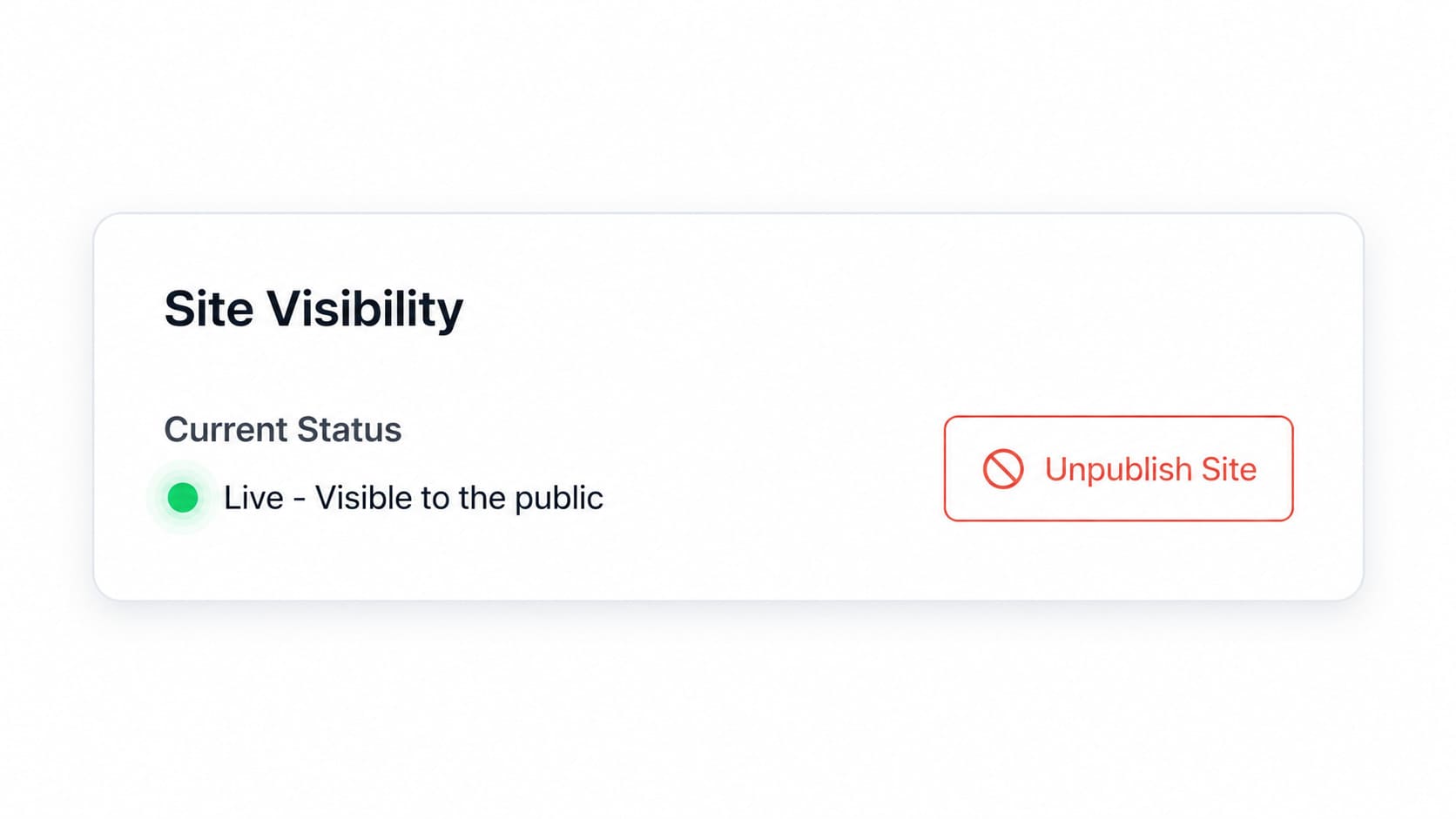 The Site Visibility card in Settings → General is where you unpublish or republish — separate from the Danger Zone's permanent delete option.
3. What Happens to Your Site While Unpublished
While your site is unpublished:
- Your content is untouched. Every section, image, color, and piece of copy remains exactly as you left it.
- Your builder access is unaffected. You can keep editing — updating copy, swapping images, restructuring sections — the same as always, on the same paid plan that let you publish in the first place.
- Your domain reservation stays yours. Your
mours.siteslug or connected custom domain is not released or reassigned — it simply stops serving content publicly. - Form submissions and analytics history are preserved, just not growing, since there's no live traffic to generate new ones.
- Your subscription keeps running. Unpublishing does not cancel or pause your billing — it's a content-visibility switch, not a plan change.
4. How to Republish
Bringing your site back is the same screen in reverse:
- Go to Settings → General → Site Visibility.
- Click Publish Site.
- Confirm.
Your site goes live again immediately, exactly as it was when you unpublished it — plus any edits you made in the meantime.
5. When Unpublishing Is the Right Call
A temporary closure. Renovation, relocation, a break in service — situations where the business itself is fine, just not currently operating.
A rebrand in progress. You're reworking your messaging, sections, or entire structure and don't want half-finished changes visible to visitors while you work. Unpublish, edit at your own pace, republish when it's ready.
A seasonal business. If your business genuinely only operates part of the year, unpublishing during the off-season keeps your site from looking abandoned or outdated to anyone who stumbles across it, without losing a single setting for next season.
Testing a major redesign. Draft your changes, preview them privately as much as you like, then republish only once you're confident — rather than letting visitors see a work-in-progress.
6. When to Delete Instead
Deletion (from Settings → Danger Zone) is the right call only when the site's purpose has genuinely ended — the business has permanently closed, a one-off campaign or event site is no longer needed at all, or a client relationship has fully concluded and you have no reason to keep the site or its data. See our full guide on deleting a MakeOurs site for what's involved and what to save first.
If there's any realistic chance you'll want the exact same site back — even a small one — unpublish instead. It costs nothing extra to leave a site unpublished indefinitely, and republishing later is instant.
7. What to Tell Customers While Your Site Is Unpublished
Unpublishing your site doesn't unpublish your presence everywhere else — your Google Business Profile, social bios, and old shared links still point at the same URL, which will now show as unreachable rather than quietly redirect anywhere. A few things worth doing alongside unpublishing:
Update your Google Business Profile description with a short note about the closure or pause, so anyone searching for you locally isn't confused by a dead link.
Post once on whichever social account you actually check — a line like "we're offline for a couple of weeks while we renovate, back soon" costs nothing and prevents a stream of "is this business still open?" messages.
Leave your contact number or a WhatsApp link visible somewhere off-site — your Google Business Profile or Instagram bio — so people can still reach you even while the site itself is down.
None of this is required by MakeOurs, but it closes the gap between "the button says the site is offline" and "customers actually understand why."
8. Common Mistakes People Make With This Feature
Deleting when they meant to unpublish. By far the most common mistake. If you're not sure which one you want, default to unpublish — it's reversible and costs nothing to leave in that state indefinitely, whereas deletion cannot be undone.
Forgetting the site is unpublished for months. An unpublished site with an active paid subscription is still being billed normally. If a "temporary" pause turns into a permanent decision, revisit whether you actually want to downgrade or cancel instead of continuing to pay for a site nobody can see.
Assuming unpublishing pauses billing. It doesn't. Unpublishing is a content-visibility toggle, not a billing action. If cost is the reason you're taking the site down, look at your plan and subscription settings separately.
9. Frequently Asked Questions
Q1: Does unpublishing delete my site's content?
No. Unpublishing only takes your site offline from public view. All content, images, settings, and past form submissions remain exactly as they were, and you can republish at any time.
Q2: Will I lose my domain if I unpublish?
No. Your mours.site subdomain or connected custom domain stays reserved to your site — it simply stops serving content to visitors until you republish.
Q3: Can I still edit my site while it's unpublished?
Yes. The builder works the same way regardless of whether your site is currently published. Make all the changes you want, then republish when ready.
Q4: Does unpublishing cancel my MakeOurs subscription?
No. Unpublishing is purely a visibility switch — it does not pause, cancel, or refund your billing. Manage your subscription separately from your site's Billing section.
Q5: How is unpublishing different from deleting?
Unpublishing is reversible and keeps everything intact — just offline. Deleting is permanent: content, form submissions, and analytics history are gone for good, and your domain slug is released. Use unpublish for anything temporary, and delete only when you're certain the site is done for good.
10. Conclusion: Take It Offline Without Losing It
Not every reason to take a site down is a reason to destroy it. MakeOurs' Unpublish option exists precisely for that gap — a renovation, a rebrand, a seasonal pause — situations where you need the public view to stop, not the work you put in.
Go to Settings → General → Site Visibility, click Unpublish, and your site comes down cleanly. When you're ready, the same screen brings it right back, exactly as you left it.
Manage your site's visibility — unpublish or republish whenever you need to. Go to Your MakeOurs Dashboard
External References & Further Reading:
- Google Search Central: Temporarily taking a site down without losing SEO
- Web.dev: Content management and site lifecycle best practices
- Nielsen Norman Group: Communicating site downtime to users
For more guides on managing your MakeOurs site, visit our Blog section.